Author: patrick

  • Intune Enterprise Application Management: is it actually worth the hype? 

    Microsoft quietly folded several Intune Suite features into Microsoft 365 E5 licensing a while back, and most customers I speak to still haven’t noticed. I covered the wider Intune Suite changes in a previous post. This time I want to focus on the one that’s changed how I deploy applications day to day: Enterprise Application Management, or EAM. 

    If you manage endpoints for a living, application packaging is probably the job you complain about most. Not because it’s difficult, but because it’s relentless. You package Chrome, it updates. You package Adobe Reader, it updates. You blink, and half your estate is running something with a CVE against it. EAM is Microsoft’s attempt to take that grind off your plate, and having run it in a few production tenants now, I think it’s one of the more genuinely useful things to land in Intune in a while. 

    What EAM actually is 

    Strip away the marketing, and EAM is a Microsoft-curated app catalogue sitting inside Intune. Instead of you sourcing an installer, building a Win32 package, writing detection rules and testing an uninstall string, you pick the app from the catalogue and Microsoft has already done that work for you. 

    It covers the usual suspects: Chrome, Firefox, Zoom, 7-Zip, Notepad++, Webex, Power BI Desktop, and a growing list of others. Microsoft owns: 

    • Onboarding the app into Intune 
    • Keeping the deployment package current 
    • Version tracking and supersedence 
    • Security patching as new releases land 

    None of this is new in concept. Third-party patching tools have existed for years. What’s different is that it’s built into Intune itself, with no extra agent and no extra console to log into. 

    Why this problem needed solving 

    A typical Win32 deployment in Intune looks something like this: get the installer, wrap it, write install and uninstall commands, build detection logic, set requirement rules, test it, deploy it, then repeat every time the vendor ships an update. For an internally built line-of-business app, fine, you only do that occasionally. For Chrome, which ships a new version roughly every month, it’s a treadmill. 

    Now multiply that across a realistic estate. Most organisations I work with are running something close to this list on every device: 

    • Adobe Acrobat Reader 
    • Notepad++ 
    • 7-Zip 
    • Google Chrome 
    • Mozilla Firefox 
    • Zoom 
    • VLC Media Player 
    • Cisco Webex 
    • Power BI Desktop 

    Every single one of those is a live update problem and, if it falls behind, a live security problem. That’s the bit EAM is aimed at, and it’s the right bit to aim at. 

    Setting one up 

    This is genuinely one of the least painful parts of the Intune admin experience. Go to Apps, All Apps, Add, and choose Enterprise Application Catalogue App. Search the catalogue, pick your application, and Intune builds the deployable object for you. 

    From there you’re just doing the normal admin work: assignments, availability, scope tags, notification behaviour, restart grace periods. No packaging, no detection scripting, no fiddling with silent install switches at 6pm on a Friday because the vendor changed them again. 

    Automatic updates, and how they actually behave 

    This is the feature that matters most, in my view. When Microsoft refreshes a catalogue app, the package and metadata update behind the scenes, and you choose whether new versions roll out automatically or wait for your review. 

    I’d push back gently on going fully automatic for everything, everywhere, on day one. I’ve seen a vendor update break a plugin dependency in the wild, and if you’ve gone fully hands-off you find out from your service desk instead of from testing. Automatic updates for browsers and utilities, yes. A short pilot ring for anything with real business dependencies, always. 

    Why security teams should care 

    A large share of the exploited vulnerabilities I see in incident reviews aren’t in Windows itself. They’re in the browser, the PDF reader, the compression tool, the conferencing client — the applications nobody thinks about until they’re on a CVE list. Keeping that layer current is one of the highest-leverage things you can do for your attack surface, and it’s also one of the most neglected, because it’s tedious. 

    EAM won’t fix a badly configured firewall or a weak identity story, but it closes a gap that gets exploited constantly: known-vulnerable, unpatched third-party software sitting on end-user devices for months because nobody got around to repackaging it. 

    It also ties in cleanly with things security teams already care about, without needing a separate project to justify it: 

    • Microsoft Defender Vulnerability Management remediation 
    • Cyber Essentials Plus and ISO 27001 patching requirements 
    • Zero Trust principles around reducing attack surface and removing unsupported software 

    If your vulnerability management reports keep flagging the same handful of outdated applications every month, EAM is the practical fix, not another policy document. 

    Supersedence: don’t skip this part 

    EAM plugs into Intune’s supersedence engine, which lets you retire old versions cleanly as new ones roll in — upgrading Adobe Reader builds, moving Chrome Enterprise channels along, that sort of thing. 

    Set this up properly. I’ve been into more than one tenant where three generations of the same application were all still assigned, because nobody ever went back and cleaned up the old packages after EAM took over. Write down what’s approved, what version is current, and when old packages get retired. EAM does the mechanical work; someone still has to own the decisions. 

    Keep an eye on it — don’t deploy and forget 

    Deployment is the easy part. The bit people skip is watching whether it actually worked. Inside Intune, check install status by device and by user, and keep an eye on your application assignment and endpoint analytics reports. 

    As a rule of thumb, I want deployment success sitting comfortably above 95%, and I want to know immediately if a particular vendor’s installer starts failing more often than the others — that’s usually the first sign something’s changed upstream. Track update compliance and flag devices still on unsupported versions. None of this is glamorous, but it’s what turns EAM from a nice demo into something you can actually stand behind in an audit. 

    EAM and Autopilot: a genuinely good pairing 

    If you’re provisioning devices through Windows Autopilot, EAM applications fit in well. Devices enrol, catalogue apps install automatically, and updates carry on being managed after the fact without you touching the build again. 

    Browsers, PDF readers, collaboration tools, remote support software, core productivity apps — these are the categories I’d put through EAM first in a new build. It cuts real time out of provisioning and takes ongoing maintenance off the image entirely. 

    A few things I’d tell any team starting out with EAM 

    Start with your worst offenders 

    Don’t onboard everything at once. Start with the applications that update most often and sit on the most devices — usually browsers and PDF readers. That’s where the effort saved is highest. 

    Run update rings, same as Windows Update 

    Pilot, IT team, early adopters, then everyone else. It’s an extra bit of process, but it means a bad vendor update hits ten machines, not ten thousand. 

    Work with your vulnerability management team, not around them 

    Let Defender Vulnerability Management findings tell you which applications to prioritise for automated maintenance. It’s a better prioritisation signal than guesswork. 

    Retire the old Win32 packages 

    Once an EAM version is validated, get rid of the legacy package. Running both indefinitely just creates confusion about which one is actually in control of a given device. 

    Watch the deployment reports, weekly if you can 

    Installation failures, version compliance, update success rate. If nobody looks at these, you won’t know EAM has quietly stopped working for a subset of devices until someone complains. 

    Pilot everything, even Microsoft’s own packages 

    Microsoft maintaining the package doesn’t mean the vendor’s update can’t still break something on your estate. Test before you push wide, the same as you would with anything else. 

    Where EAM won’t help you 

    It’s not a replacement for proper Win32 packaging, and Microsoft hasn’t pitched it as one. Line-of-business applications, custom internal software, anything needing heavy customisation or vendor-specific install parameters, and legacy software with awkward dependencies — that’s still manual packaging territory. 

    A mature Intune environment ends up running both approaches side by side. That’s not a shortcoming of EAM, it’s just the reality of enterprise application estates: some things are common enough for Microsoft to maintain centrally, and some things are yours to own. 

    Where I land on this 

    Enterprise Application Management is one of the more immediately useful things E5 customers have picked up recently, and it doesn’t need a big project plan to start getting value from it. Hand the packaging and update treadmill to Microsoft, and your team gets time back for governance, security work, and the things that actually need a human making a judgement call. 

    For security-minded organisations specifically, the win isn’t really convenience — it’s exposure. Fewer outdated applications sitting on endpoints means fewer easy wins for an attacker, better numbers in your vulnerability reports, and a stronger story for Cyber Essentials Plus, ISO 27001, or whatever framework you’re being measured against. 

    Pair it with Windows Autopilot and Defender, get your reporting discipline right, and EAM stops being a nice-to-have feature and starts being a genuine part of how you keep an estate current at scale. I’d rather spend my time on that than repackaging Chrome for the fortieth time this year. 

  • Cloud PKI in Microsoft Intune: Finally, Certificates Without the On-Prem Headache

    In my last post, I talked about how a chunk of what used to live only in the Intune Suite has quietly become part of standard Microsoft 365 E5 licensing. Cloud PKI is, for my money, one of the best of that bunch.

    If you’ve ever built or inherited an AD CS environment, you’ll know exactly why.

    The problem with “proper” PKI

    PKI has underpinned enterprise security for decades. Certificate-based Wi-Fi, VPN, device trust — none of it works without a CA somewhere issuing and revoking certs.

    The trouble has always been the “somewhere”. Traditional PKI means servers, patching, backups, disaster recovery plans, and usually at least one person who quietly dreads what happens if the CA falls over.

    I’ve sat in more than one post-incident review where the root cause traced back to an expired intermediate certificate nobody was watching. It’s rarely glamorous, but it’s exactly the kind of thing that takes down authentication for an entire site.

    Microsoft Cloud PKI is Microsoft’s attempt to take that operational weight off your plate and hand it back as a managed service inside Intune.

    What it actually is

    Cloud PKI is a certificate authority service that lives in Intune. You create root and issuing CAs, build certificate profiles, and push certificates to managed devices — no AD CS servers, no NDES box, no Certificate Connector sitting on a VM somewhere quietly getting forgotten about.

    It covers the usual certificate workloads: Wi-Fi, VPN, device identity, user identity, and the passwordless and phishing-resistant scenarios everyone’s chasing at the moment.

    Why this matters more than it might look

    On paper it’s “PKI, but cloud”. In practice, it removes an entire category of infrastructure risk.

    Every NDES server I’ve come across has been a bit of a soft spot — internet-facing, fiddly to patch, and rarely high on anyone’s priority list until something goes wrong. Cloud PKI takes it out of the equation entirely.

    That matters for organisations trying to shrink their on-prem footprint generally, not just for PKI specifically. Fewer servers means fewer things that can be misconfigured, fewer patch cycles, fewer 2am calls.

    How the hierarchy works

    Cloud PKI keeps a structure that’ll feel familiar if you’ve worked with PKI before: a root CA, with one or more issuing CAs underneath it.

    Microsoft hosts and manages the root — you control issuance policy and trust. Issuing CAs handle the day-to-day work of actually issuing certificates, and you can create more than one to split things by business unit, environment, region, or use case.

    It’s the same design thinking as an on-prem PKI hierarchy, minus the servers.

    What you actually gain

    A few things stand out to me.

    Automated lifecycle management is the big one. Renewal, revocation, issuance — all policy-driven. Expired certificates are one of the most avoidable causes of outage in enterprise IT, and this genuinely helps close that gap.

    It’s also just… in Intune. Creating CAs, building profiles, assigning them, checking status, revoking — all in the same console you’re already living in. If you’re an Intune admin, there’s very little new to learn here, which isn’t something I say about many Microsoft security features.

    And there’s the obvious security upside of certificate-based authentication over passwords: stronger device identity, harder to phish, and a genuine step towards passwordless.

    Where I’d actually use it

    Wi-Fi and VPN authentication are the obvious wins — push a certificate, users connect without ever seeing a credential prompt. I’ve seen how much support-desk noise disappears once Wi-Fi stops relying on users typing passwords correctly.

    Device authentication for Conditional Access is the other one worth calling out — proving a device is what it claims to be before it gets anywhere near corporate resources.

    Fitting into Zero Trust

    Microsoft frames Zero Trust as verify explicitly, use least privilege, and assume breach. Certificates are a genuinely useful tool for the first of those — they give you cryptographic proof of identity, not just a password someone typed correctly.

    Put it together with Entra ID, Conditional Access, Intune compliance policies, and Defender for Endpoint, and you get something like this: a device enrols, Cloud PKI issues it a certificate, the device becomes compliant, Conditional Access checks compliance and identity, and access is granted only to trusted users on trusted devices.

    None of these pieces are new individually. What Cloud PKI does is make the certificate piece far less painful to stand up — which means more organisations will actually bother.

    Before you migrate

    I wouldn’t rip out an existing AD CS estate overnight, and I don’t think Microsoft expects anyone to either.

    Worth checking before you commit: smart card requirements, any legacy applications tied to specific certificate templates, third-party network kit expecting a particular CA, and anything regulatory that dictates where and how your CA has to be hosted.

    Most organisations I’ve spoken to are running Cloud PKI alongside their existing PKI for a while, migrating workload by workload rather than in one go. That’s the sensible approach.

    Is it worth it?

    If you’re already on Microsoft 365 E5, Cloud PKI is effectively sitting in your tenant right now, unused. That alone makes it worth a look.

    More importantly, it removes one of the genuine, longstanding blockers to doing certificate-based authentication properly: the infrastructure overhead. I’ve watched plenty of good security initiatives stall because nobody wanted to own another CA server. This takes that excuse away.

    It’s not going to replace every PKI deployment overnight, and it shouldn’t. But if you’re building out Wi-Fi, VPN, or device-identity scenarios and haven’t looked at Cloud PKI yet, it’s a genuinely worthwhile half hour of your time.

  • Deploying Microsoft Intune Endpoint Privilege Management: What Actually Works

    Most organisations I work with have been chasing least privilege for years. Strip out local admin rights, shrink the attack surface, limit what a compromised account can do. All good instincts.

    The trouble is what happens on Monday morning when someone genuinely needs to install a printer driver or run an update that insists on admin rights. That’s the gap EPM was built to close.

    Microsoft Intune Endpoint Privilege Management (EPM), part of the Intune Suite and now part of Microsoft 365 E5, lets standard users run specific approved things with elevated rights—on demand, for that one task, without ever making them a local admin. No more, no less.

    This is the deployment playbook I use with clients: how EPM actually works under the hood, how to roll it out without a support desk meltdown, and the configuration choices that separate a good deployment from one that just moves the risk around.

    What EPM actually does

    EPM elevates specific applications, scripts, installers and processes. The user stays a standard user throughout. That distinction matters more than it sounds — you’re not granting a person more power; you’re granting a process more power, for as long as it needs it.

    Under the hood, EPM policies decide:

    • Which applications are allowed to elevate
    • Who is allowed to trigger that elevation
    • Whether the user has to explain why
    • Whether someone else has to approve it first
    • Whether it happens automatically or on request
    • What gets logged when it does

    Get this right, and you’ve got Zero Trust in practice rather than Zero Trust as a slide in a deck.

    The architecture, briefly

    Three pieces do the work:

    The EPM service sits in the cloud, bolted onto Intune. It manages policy and reporting.

    The Intune Management Extension (IME) is the bit already running on your endpoints that pulls those policies down.

    The EPM client components sit on the device itself, evaluating each elevation request as it happens.

    When someone launches something that needs admin rights, EPM checks it against your rules, decides whether to allow it, runs that one process elevated if approved, and ships the audit trail straight back to Intune. The user’s session itself never changes. Only the process does.

    Licensing — check this before you get excited

    EPM needs one of the following sitting on every user you want covered:

    • Microsoft 365 E5
    • Microsoft Intune Suite
    • The Intune EPM add-on

    It works on Windows 10 and 11, on Entra-joined or Entra hybrid-joined devices. Devices need to be enrolled in Intune with the Management Extension installed — if that’s not already ticking along on your estate, sort that first.

    I’ve seen more than one EPM pilot stall for a fortnight because nobody checked licensing coverage until after the policies were built. Do this bit first.

    Plan before you configure anything

    Here’s the mistake I see most often: someone gets excited about EPM, builds a few elevation rules based on gut feel, and rolls it out. Three weeks later, the helpdesk is drowning in tickets because nobody actually knew what needed admin rights in the first place.

    Before touching a policy, find out what’s actually elevating today. Look at:

    • Line-of-business applications with dodgy installers
    • Legacy software that’s never been rewritten to behave
    • Update mechanisms that insist on admin rights for no good reason
    • Device management and monitoring tools
    • Developer toolchains
    • Anything bespoke and internal

    Microsoft Defender for Endpoint and advanced hunting queries are genuinely useful here — they’ll show you real elevation attempts rather than what you assume is happening. Your existing software deployment reports are worth a look too.

    This discovery phase is unglamorous, and it’s the single biggest predictor of whether the rollout goes smoothly.

    Roll it out in phases — don’t be a hero

    A big-bang EPM deployment across the whole estate is asking for trouble. I always recommend three phases.

    Phase 1 — Discovery. A small pilot group: IT admins, security team, application owners, a few power users. Use them to work out what your elevation scenarios actually look like before anyone else sees a prompt.

    Phase 2 — Controlled pilot. Push EPM to a limited slice of real production users. Watch the user experience closely, check application compatibility, make sure reporting and audit events are landing where you expect.

    Phase 3 — Enterprise rollout. Expand in waves — by department, device type, region, risk profile, whatever makes sense for your organisation. Waves, not one big switch.

    Configuring EPM

    Step 1 — Turn it on. In the Intune admin centre, go to Endpoint Security → Endpoint Privilege Management, enable it, and assign the policy to the device groups you actually mean to target.

    Step 2 — Build your elevation settings policy. This is where you decide how elevation feels for the user. There are four flavours:

    Automatic elevation — the app elevates automatically, with no prompt. Fine for trusted business apps and standardised, well-understood tools. I wouldn’t reach for this outside of software you genuinely trust without question.

    User confirmed elevation — a prompt the user has to accept. Good for the odd admin task and medium-risk tools.

    User justification — the user has to type a reason before it elevates. This is where I’d put anything remotely sensitive — administrative utilities, security tooling, that sort of thing. The justification text is more useful than people expect when you’re investigating something later.

    Approval required — someone else has to say yes first. Reserve this for your genuinely high-risk admin tools and privileged maintenance work. It’s friction, and friction is the point.

    Elevation rules — how you identify what’s allowed to run

    Three ways to match an application, each with a real trade-off.

    File hash. The most secure option, full stop. Nothing gets through unless it’s the exact binary you approved. The catch is maintenance — every update means a new hash, so this works best for tools that don’t change often, like dedicated security utilities.

    File certificate. Matches on the publisher’s signing certificate rather than the exact file. Much less maintenance, and it survives normal software updates without you lifting a finger. The trade-off is you’re trusting the publisher more broadly, so this is best kept for Microsoft software and vendors you genuinely trust.

    File path. Matches on where the file lives. It’s the easiest to set up and, frankly, the one I’d avoid wherever possible — a folder path is trivial to abuse if an attacker can drop something into it. Use this only when hash or certificate matching genuinely isn’t an option.

    Configuration choices that actually matter

    1. Remove local admin rights first

    EPM isn’t meant to sit alongside widespread local admin access — it’s meant to replace it. If you deploy EPM but leave half your estate with standing admin rights, you’ve added a control without removing the risk it was meant to address. Pull permanent local admin memberships where you can, bring in proper privileged access management, and use EPM to handle the genuine exceptions.

    2. Lean on certificate rules

    For most enterprise software, certificate-based rules give you the best balance of security and sanity. Avoid broad path-based rules altogether, and think twice before going hash-only on anything that updates frequently — you’ll be maintaining that rule forever.

    3. Make people justify PowerShell, CMD, and friends

    PowerShell, Command Prompt, Registry Editor, Device Manager, MMC snap-ins — require justification and full audit logging on all of them. When something goes wrong later, having a written reason attached to every elevation is genuinely useful, not just a box-ticking exercise.

    4. No wildcard rules. Ever.

    Don’t allow entire folders or generic paths to elevate. C:\Temp\*, Downloads folders, user profile directories — these are exactly where an attacker would drop a payload, and a wildcard rule hands them the keys. If you find yourself writing a wildcard to save time, that’s the moment to stop and find the specific rule instead.

    5. Wire it into Microsoft Defender for Endpoint

    Defender gives you visibility into elevated process execution, incidents and investigations that EPM alone won’t show you. Your security team should correlate EPM events with endpoint telemetry, not treat them as two separate data sets.

    6. Use RBAC properly

    Don’t let one team own policy creation, application approval and reporting all at once. Split those responsibilities through Intune’s role-based access control. It’s a small thing that meaningfully reduces the risk of someone quietly approving their own elevation request.

    7. Time-limit your approvals

    If you use approval workflows, require a business reason, cap how long the approval lasts, and review them regularly. Elevation that never expires isn’t really elevation — it’s just admin rights with extra steps.

    8. Audit everything, properly

    Capture elevation requests, approvals, justifications, elevated launches and policy matches. Keep that data for as long as your security policy requires. When an incident happens, this data tells you what actually ran and why.

    Keep watching after go-live

    EPM deployments don’t finish at go-live — that’s when the real work starts. Review regularly:

    • Which applications are being elevated most
    • Failed elevation attempts
    • Approval requests coming through
    • What people are writing in the justification field
    • Any device generating unusually high elevation activity

    A sudden spike in elevation activity is worth investigating properly. It might just be a new tool rolling out, or a training gap, but it might also be someone poking around where they shouldn’t be. Treat it as a signal, not noise.

    EPM isn’t the whole story

    EPM meaningfully reduces risk compared with handing out local admin rights, but don’t mistake it for a complete security control. It’s one layer.

    Pair it with Microsoft Defender for Endpoint, Attack Surface Reduction rules, Application Control for Business (the WDAC rebrand), Conditional Access, Privileged Identity Management, security baselines and device compliance policies. Together, that’s a layered defence that actually earns the label Zero Trust rather than just borrowing the phrase.

    Mistakes I see again and again

    • Migrating everyone at once instead of phasing it
    • Leaning too hard on path-based rules because they’re quick
    • Skipping the discovery phase and finding out what needs elevation the hard way
    • Not monitoring elevation events once the policy is live
    • Handing out approval permissions too broadly
    • Letting developers elevate whatever they like, whenever they like
    • Treating EPM as a substitute for proper application control rather than a companion to it

    Fix these early, and the rest of the deployment tends to look after itself.

    My Final thoughts

    Of everything in Intune, EPM is one of the controls I’d genuinely encourage every organisation still running local admin rights to look at seriously. It lets you get rid of standing admin access without users feeling like they’ve been locked out of doing their jobs — which, in my experience, is usually the thing that kills these projects before they start.

    The deployments that go well share the same pattern: proper discovery up front, a phased rollout, sensible governance, and monitoring that doesn’t stop once the project’s marked complete. Pair EPM with Defender for Endpoint, Application Control and your wider Zero Trust controls, and it becomes a genuinely load-bearing part of your endpoint security strategy — not just another policy nobody looks at again.

    If you’re still sitting on widespread local admin rights, EPM is a practical, well-trodden way to start taking that away — without your users noticing much difference to how they work.

  • Microsoft 365 E5 Just Got Considerably More Useful for Endpoint Security

    If you’re running Microsoft 365 E5, go and check your tenant. There’s a good chance you’re now licensed for tools you’ve been meaning to buy for the last two years.

    As of July 2026, Microsoft has folded several premium Intune Suite capabilities directly into E5 licensing, no add-on required. I’ve been doing endpoint security work in this space for a while, and this is the kind of license change that quietly changes project priorities. It’s not flashy, but it matters.

    Microsoft’s own announcement covers the details here and here. This post is my take on what actually matters to the people who have to implement it.

    Why This Actually Matters

    Endpoint management used to mean pushing out policies and calling it a day. That’s not the job any more.

    Security teams are now expected to strip out admin rights, secure a workforce that’s half at home and half in the office, get off ageing certificate infrastructure, and actually see what’s happening across their device estate — usually with the same headcount they had five years ago.

    Microsoft including these capabilities in E5 by default tells you where they think endpoint security sits now: not as a nice-to-have bolt-on, but as core Zero Trust capability. I’d agree with that read.

    What You Actually Get

    Microsoft 365 E5 already included everything in E3. Now it also picks up a set of Intune Suite features that used to need separate licensing.

    Rolled in from the E3 side:

    • Intune Remote Help
    • Intune Advanced Analytics
    • Intune Plan 2
    • Microsoft Tunnel for Mobile Application Management

    New on top for E5 customers specifically:

    • Endpoint Privilege Management (EPM)
    • Microsoft Cloud PKI
    • Enterprise Application Management (EAM)

    Let’s go through each one, because a bullet list doesn’t tell you why you’d care.

    Endpoint Privilege Management: the one I’d deploy first

    This is the headline feature, and honestly, it’s the one I’d tackle first if I were prioritising a rollout.

    Every environment I’ve worked in has the same story: users get local admin because taking it away breaks something, or generates a wave of helpdesk tickets nobody has time for. And every environment I’ve worked in also knows that standing admin rights are one of the easiest wins for a ransomware operator or anyone else trying to move sideways through a network.

    EPM gives you a middle ground. Users stay standard users day to day. Specific approved applications can run elevated. Elevation can be just-in-time rather than permanent, governed by rules you control, and every elevation event gets logged.

    In practice, that means an engineer doesn’t need full local admin just to run Wireshark or SQL Server Management Studio. You allow those specific tools to elevate, and the rest of the machine stays locked down. It’s the least-privilege principle without the political fight of ripping admin rights away wholesale.

    Microsoft Cloud PKI: retire the certificate server nobody wants to touch

    Every organisation I’ve walked into that still runs on-premises Certificate Authorities is running them for the same handful of reasons: Wi-Fi authentication, VPN authentication, and device or user certificates.

    And every one of those CAs comes with the same baggage — infrastructure to patch and maintain, certificate lifecycles someone has to track manually, high-availability requirements, and the quiet risk of a CA server nobody’s touched a security update on in eighteen months. You know the one.

    Cloud PKI moves certificate issuance, renewal, and revocation into Intune, hosted by Microsoft. For anyone genuinely trying to get off legacy infrastructure rather than just talking about it, this is a real opportunity to switch off that server room CA for good.

    Enterprise Application Management: less time repackaging Win32 apps

    Packaging and maintaining Win32 applications is unglamorous work, and it eats far more admin time than it should.

    Test the update, repackage it, redeploy it, repeat next month. Most endpoint teams have at least one person who spends a disproportionate chunk of their week on exactly this.

    EAM pulls from Microsoft’s own catalogue of pre-packaged, kept-current applications, so a good chunk of that churn disappears. For an organisation managing a few thousand endpoints, that’s not a minor convenience — it’s hours back every week and users getting patched software faster.

    Intune Advanced Analytics: fewer surprises from the helpdesk

    Visibility is still where most endpoint management falls down. You usually find out a device is struggling when the user rings the helpdesk, not before.

    Advanced Analytics gives you device performance, endpoint health, user experience and app reliability data, and Microsoft has recently added near real-time device queries, Multi-Device Query, and AI-assisted analytics through Security Copilot.

    The practical upshot: you can spot a device that’s about to have a bad boot time, or an app that’s crashing across a subset of your estate, before it turns into forty tickets. That’s the difference between reactive firefighting and actually running the environment.

    Intune Remote Help: support without a third-party tool

    Remote support tooling is one of those things everyone has, and almost everyone has bolted on from a third party with its own login, its own audit trail, and its own gaps.

    Remote Help sits inside the Microsoft security stack instead — Entra authentication, role-based access, compliance-aware access, and every session logged and auditable. For hybrid teams, that’s one fewer vendor relationship and one fewer audit trail to reconcile at year end.

    Intune Plan 2: the frontline and specialty device stuff

    If your estate is all corporate Windows laptops, this section won’t excite you much. If you’ve got shared devices, rugged Android handhelds, or Zebra scanners on a warehouse floor, it will.

    Plan 2 covers specialty and shared device management, stronger Android controls, and Zebra firmware update management. Retail, logistics, manufacturing and healthcare environments tend to get the most out of this — it’s the difference between managing frontline devices properly and managing them by exception.

    Microsoft Tunnel for MAM: BYOD without full enrolment

    BYOD is still a genuine headache. Users don’t want their personal phone fully enrolled and managed, and honestly, I don’t blame them.

    Tunnel for MAM gives you per-app VPN access to internal resources without requiring full device enrolment, so corporate data stays protected without Microsoft — or you — needing visibility into someone’s personal photos and apps. It’s a reasonable compromise, and one that tends to get much less pushback from users than full MDM enrolment.

    Security Copilot: still separately licensed, but worth watching

    Security Copilot itself isn’t part of this bundle — that’s a separate licence — but Microsoft keeps deepening the integration with Intune: natural language queries against Intune data, AI-assisted KQL generation, risk scoring for EPM elevation requests, and vulnerability remediation guidance.

    I’d treat this as a direction of travel rather than a reason to buy anything today. Microsoft is clearly building towards AI-assisted administration as a standard part of endpoint management, not a novelty. Worth keeping an eye on, not worth rushing into.

    What This Means If You’re Already on E5

    If you’re already licensed for Microsoft 365 E5, none of this requires a procurement conversation. It requires a deployment plan.

    Realistically, that means:

    • Turning off standing local admin rights via EPM
    • Planning the retirement of your legacy on-premises CA
    • Cutting down repackaging effort with EAM
    • Actually using the visibility Advanced Analytics gives you
    • Consolidating remote support onto Remote Help

    In my experience, a lot of organisations already own tooling they’ve never turned on. This is a good example — Intune Suite used to be viewed as a nice-to-have upsell, and many teams quietly filed it under ‘later’. For a lot of E5 customers, later is now.

    My Final Thoughts

    This is one of the more significant endpoint licensing changes I’ve seen in a while, and it didn’t get nearly enough attention when it landed.

    Bundling EPM, Cloud PKI, EAM, Advanced Analytics, Remote Help and the rest into E5 makes genuinely enterprise-grade endpoint management accessible to organisations that would previously have had to build a business case for every one of these separately.

    If you’re working towards Zero Trust and you’re already on E5, this is worth an afternoon of your time. Go and check what you’re actually entitled to before you plan your next quarter — I’d put money on there being at least one capability in here you’re already paying for and not using.

  • Securing AI in Microsoft Cloud Tenants: What Actually Matters

    AI is everywhere in the Microsoft stack now. Copilot for Microsoft 365, Copilot Chat, Azure OpenAI, Fabric, Security Copilot, custom agents built in Azure AI Foundry.

    Pick almost any client, and at least one of these is either live or “under evaluation.” In my experience, “under evaluation” usually means someone in finance has been using it for three months already, and nobody in IT knows.

    Here’s the bit nobody wants to hear: AI doesn’t introduce a brand-new category of security problem. It shines a very bright light on the mess that was already there.

    Identity, permissions, data governance. If your tenant was leaky before Copilot arrived, Copilot will find the leak for you. Faster and more thoroughly than any auditor ever could.

    So “securing AI” isn’t really a separate project. It’s getting the tenant right first, then switching AI on. Do it the other way round, and you’re just automating your existing problems, at speed.

    What you’re actually worried about

    Strip away the marketing language and the concerns are pretty consistent across every client I’ve worked with:

    • Oversharing of sensitive information
    • Confidential data turning up somewhere it shouldn’t
    • Unauthorised access surfaced through AI-generated answers
    • Data leaking out through prompts and outputs
    • Shadow AI — people using tools nobody signed off on
    • Prompt injection
    • Data poisoning
    • Excessive permissions sitting quietly in Microsoft 365
    • Unmanaged AI apps connecting to corporate data
    • Regulatory exposure

    Nine times out of ten, when I go digging, it’s the same story. Copilot didn’t create a new vulnerability. It just surfaced a permissions problem that’s been sitting there for years.

    If someone has access to a SharePoint site, a Teams channel or a OneDrive folder, Copilot can potentially pull that content into an answer. It’s not being clever or malicious. It’s just doing exactly what it was given permission to do.

    Which gets you to the one line worth remembering out of this whole post:

    AI can only protect data as well as the permissions protecting that data already do.

    Everything else is detail.

    Build the foundation before you flip the switch

    Before any AI service goes near production data, get the basics solid.

    Identity first. It’s still the primary boundary, AI or not. Conditional Access, MFA everywhere, phishing-resistant MFA for admins, Privileged Identity Management, Identity Protection risk policies, Continuous Access Evaluation.

    None of this is new advice. It’s the same list I’ve been giving clients for years. AI just raises the stakes if you get it wrong.

    Concretely: MFA for every user. Preferably phishing-resistant MFA where possible. Legacy authentication blocked outright. Device compliance enforced. Access from risky locations restricted.

    Skip this step, and AI just becomes another door for an attacker to walk through with a stolen password.

    Data protection is the control that actually matters most. Microsoft’s AI services respect the permissions and labels you already have in place. Which is good news, but only if those permissions and labels are worth respecting.

    Get Purview Information Protection properly configured — Public, Internal, Confidential, Highly Confidential — and make the labels do something, not just sit there as metadata. Encrypt content, restrict sharing, apply markings, block downloads where it matters, control external access.

    Before you switch anything on, use Purview Data Map and Data Classification to find out where your personal data, financial records, IP, source code and customer data actually live. You cannot protect what you haven’t located.

    And tidy up your data lifecycle while you’re at it. Retention labels, retention policies, records management, deletion schedules. Less stale data lying around means less for AI to accidentally expose.

    This is unglamorous work, and it’s exactly the kind of thing that gets deprioritised until it causes an incident.

    Securing Microsoft 365 Copilot specifically

    Copilot is usually the first AI service through the door. Because it reads organisational content directly, permissions become the whole ballgame.

    Run a proper permission assessment before deployment: SharePoint permissions, OneDrive sharing, Teams memberships, Microsoft 365 Groups, external sharing settings.

    I have never once done this exercise for a client and come away empty-handed. There’s always an “Everyone” permission somewhere. An overshared library nobody remembers creating. Guest access granted for a project that ended two years ago. A Teams membership list that’s basically a company history lesson.

    Fix these before Copilot goes live, not after.

    Target SharePoint oversharing specifically—anonymous links, “Anyone” links, legacy sharing settings, broad access groups. SharePoint Advanced Management, Purview and Access Reviews will all help you find the excessive access. Use them together rather than relying on one.

    Then configure Copilot itself through the Microsoft 365 Admin Centre, Purview and Entra ID: control which groups get Copilot, monitor usage, apply DLP policies, and restrict plugins and connectors where you need to.

    On connectors specifically, treat every one as a new data source, because that’s exactly what it is. Check the permissions, who owns the underlying data, the access scope and the sensitivity of what’s exposed.

    Only turn on connectors you’ve actually assessed. “We’ll review it later” is how shadow data sources happen.

    Purview as the backbone of AI governance

    If there’s one platform I’d tell you to invest in properly, it’s Purview. It sits underneath almost every other control in this post.

    Set up DLP policies for financial data, personal information, healthcare records, IP and source code. Apply them across Microsoft 365, Teams, SharePoint, Exchange, and Copilot interactions. This is what stops sensitive information from leaking out through an AI conversation rather than an email.

    Use Insider Risk Management to watch for the patterns AI can accelerate — data exfiltration, unusual access, mass downloads, access to sensitive files. AI doesn’t create insider risk, but it can make an insider a lot faster.

    And use Communication Compliance to monitor prompt content, user interactions, and policy violations. This matters more the more regulated your industry is. I’d treat it as close to mandatory in financial services or healthcare.

    Locking down Azure OpenAI

    Plenty of organisations are building custom AI applications on Azure OpenAI. That’s a different conversation to Copilot, because you’re now responsible for the architecture, not just the configuration.

    Network security first: Private Endpoints, Azure Virtual Networks, Network Security Groups, Azure Firewall. Avoid public exposure wherever possible.

    The pattern I want to see is:

    Users → Application → Private Endpoint → Azure OpenAI

    Not:

    Users → Internet → Azure OpenAI

    That second pattern still turns up more often than it should.

    For authentication and authorisation, use Managed Identities, Entra ID authentication and RBAC. Shared keys, hardcoded credentials and overly generous permissions have no place here. And yes, I still find hardcoded keys in application code more often than I’d like to admit.

    Handle prompts properly: input validation, output filtering, prompt inspection, content filtering. This is your main defence against prompt injection.

    Turn on Azure AI Content Safety to catch harmful content, malicious prompts, offensive language and unsafe outputs. For anything customer-facing, I’d consider this non-negotiable.

    Prompt injection deserves its own section

    Prompt injection is the AI-specific threat that keeps coming up in client conversations, and for good reason. It’s genuinely new, genuinely tricky, and genuinely underestimated.

    It looks like this: “Ignore previous instructions.” “Reveal confidential information.” “Access hidden data.” Simple wording, sometimes buried inside a document the AI is asked to summarise rather than typed directly by a user.

    Mitigating it takes layers: strong system prompts, content filtering, retrieval validation, clear data access boundaries, and human approval for anything consequential.

    The rule I give every client is simple. Never assume an instruction generated by AI is trustworthy just because it came from AI. Validate before you act, every time.

    Zero Trust applies to AI too

    Microsoft has been banging the Zero Trust drum for years, and the same three principles hold up for AI without needing much translation.

    Verify explicitly — user identity, device health, location, risk signals, every time. Use least privilege — RBAC, PIM, Just-in-Time access, regular Access Reviews. Assume breach — monitor AI interactions, user behaviour, data access patterns and application activity as if something has already gone wrong, because eventually it will.

    Treat AI workloads as an attack surface, not as a trusted internal tool. That mental shift alone changes how a lot of these deployments get designed.

    Actually watching what’s happening

    None of the above matters if you can’t see it happening.

    Defender XDR gives you visibility over user activity, identity threats, endpoint risks and cloud application access.

    Defender for Cloud Apps is where you’ll find shadow AI, and I mean that literally. Every single engagement I’ve run this discovery exercise on has turned up employees using public AI tools nobody in IT knew about. It’s never zero.

    Feed AI logs into Microsoft Sentinel and monitor prompt activity, access events, authentication anomalies and data access behaviour. Set alerts for large-scale data access, unusual prompt activity, high-risk sign-ins and sensitive data exposure.

    If you’re not alerting on these, you’re relying on hope as a strategy.

    Governance is not optional paperwork

    Technical controls only get you so far. You need an actual governance framework sitting alongside them.

    Write an Acceptable Use Policy that says plainly which AI tools are approved, which use cases are off-limits, what the data handling rules are, and what’s expected of users.

    Run risk assessments — data sensitivity, regulatory obligations, business impact, security requirements — before a solution goes live, not as a retrospective exercise.

    The more mature organisations I work with have stood up an AI review board to look at new AI projects, risk assessments, data access requests and compliance questions before they get approved. It sounds bureaucratic. It saves an enormous amount of pain later.

    Don’t forget Security Copilot itself

    It’s easy to focus entirely on the AI tools users touch and forget that Security Copilot needs governing too.

    RBAC permissions, least privilege, audit logging and data access controls all apply here just as much as anywhere else. Keep an eye on prompt usage, generated outputs and analyst activity, and make sure Security Copilot is bolted into your existing security processes rather than left running as its own island.

    A sensible order to do all this in

    If you’re starting from scratch, this is roughly the sequence I’d follow:

    1. Secure identities with Entra ID and MFA.
    2. Implement Conditional Access policies.
    3. Classify and label sensitive data.
    4. Review SharePoint and Teams permissions.
    5. Implement DLP policies.
    6. Deploy Defender for Cloud Apps.
    7. Enable monitoring through Defender XDR and Sentinel.
    8. Pilot AI services with a limited group of users.
    9. Expand based on what the pilot and your governance process actually tell you.

    Follow that order, and you dramatically cut the chances of AI exposing risks you didn’t know about.

    My Final thoughts

    Securing AI in a Microsoft tenant comes down to securing identities, data and access. The same fundamentals that were true before Copilot existed.

    Yes, AI brings genuinely new threats like prompt injection and model abuse. But in practice, the biggest risks I see are still poor permissions, overshared content and weak governance. The AI just makes them visible faster.

    If you’ve already invested properly in Entra, Purview, Defender XDR, Sentinel and a Zero Trust approach, you’re in a good position for AI adoption. The hard part was never really “turn on Copilot” or “stand up Azure OpenAI.” It’s making sure the tenant underneath is ready for a world where AI is becoming the main way people interact with corporate information.

    The organisations that get this right are the ones treating AI as part of their existing security architecture, not as a bolt-on. Same rigour, same governance, same monitoring you already apply to identities, endpoints and data. Just extended to cover the newest thing sitting on top of them.

  • Deploying DLP in Microsoft Purview: What Actually Works

    Data protection sounds simple until you sit in front of the Purview admin centre with a blank policy and a business that hasn’t slowed down to wait for you. I’ve deployed DLP across enough tenants now to have opinions about what works and what quietly causes chaos six weeks later. Here they are.

    Don’t start with policies. Start with looking.

    The single most common mistake I see is someone jumping straight into policy creation before they’ve spent any real time in Content Explorer.

    You can’t protect what you haven’t found. Before you write a single rule, go and look at where sensitive data actually lives, who’s touching it, and how it’s currently being shared. Most of that sharing is legitimate. Some of it isn’t. You won’t know which is which until you look.

    Ask yourself the boring but essential questions:

    • Where does personal data actually sit?
    • Who in the business handles financial information day to day?
    • Is anything sensitive leaking out externally right now?
    • Which Teams or SharePoint sites are quietly holding regulated content nobody’s thought about?

    This discovery phase is unglamorous. It’s also the difference between a DLP programme people trust and one they route around.

    Get your labelling sorted first

    DLP on its own is decent. DLP paired with Purview Information Protection is genuinely useful.

    Roll out sensitivity labels, turn on auto-labelling for existing content, and use mandatory labelling with inheritance where it makes sense. A typical label set looks something like Public, General, Confidential, Highly Confidential, and Highly Confidential – Restricted.

    Once labels are in place, your DLP policies get a lot smarter. Instead of relying purely on pattern matching, you can build conditions around the label itself. A policy blocking anything marked “Highly Confidential” from leaving the tenant doesn’t care whether the content matches a regex — it just knows the label says no.

    Custom Sensitive Information Types are worth the investment too, especially for anything business-specific. They catch data that generic patterns miss, and you can feed them into auto-labelling so files get tagged correctly without someone doing it by hand.

    Audit mode isn’t optional — it’s the whole point

    Please don’t flip a policy straight to enforcement. I’ve seen it done, and it’s rarely pretty.

    Purview lets you run policies in simulation or audit mode first, and that time is worth every minute. You’ll see false positives you didn’t expect, get a real sense of alert volume, and gather feedback before anyone’s inbox gets blocked mid-deal.

    A deployment sequence that actually holds up in practice:

    1. Discover and assess.
    2. Deploy in audit mode.
    3. Review the incidents that come in.
    4. Fine-tune the conditions.
    5. Turn on user notifications.
    6. Move to enforcement.

    Skip steps and you’ll spend your first week of enforcement fielding complaints instead of reviewing genuine risk.

    Protect the data that actually matters, first

    Trying to lock down every category of sensitive information on day one is a recipe for an alert queue nobody will ever clear. Pick your highest-risk data and start there:

    • Intellectual property
    • Payment card information
    • National Insurance and Social Security numbers
    • Passport details
    • Banking information
    • Healthcare records
    • Customer personal data

    Getting this right early builds confidence in the programme. Getting it wrong — trying to boil the ocean — burns goodwill you’ll need later.

    Built-in SITs are a good starting point, not a finish line

    Microsoft ships hundreds of pre-built Sensitive Information Types — UK National Insurance numbers, credit card numbers, IBANs, passport numbers, NHS numbers, tax IDs, and plenty more. They’re updated regularly, and they get you moving quickly.

    They also throw up more false positives than you’d like. That’s just the nature of pattern matching at scale. Check the accuracy before you enforce anything based on them, and where you’ve got genuinely business-specific data, build custom SITs, Exact Data Match classifiers, or trainable classifiers instead. The accuracy improvement is worth the setup time.

    Policy Tips do more work than people give them credit for

    DLP isn’t only about blocking. A lot of its value comes from simply telling people what’s going on, in the moment, before they make a mistake.

    Policy Tips do exactly that — a quiet warning when someone’s about to email something sensitive externally, with a nudge towards the secure alternative. Users who understand why something’s restricted tend to adjust their behaviour. That means fewer repeat alerts and less friction down the line.

    Alert fatigue will kill your programme faster than any misconfiguration

    I’ve walked into tenants generating thousands of DLP alerts a month that nobody has looked at in weeks. That’s not a security control — it’s noise.

    Tune severity levels properly, route incidents to whoever can actually act on them, and connect things into Microsoft Defender XDR where it makes sense. Review trends regularly. A DLP policy that nobody’s watching isn’t protecting anything.

    Don’t forget the endpoint

    Sensitive data doesn’t stay neatly inside Microsoft 365. Endpoint DLP extends control out to endpoint devices, covering things like:

    • USB transfers
    • Printing
    • Copying to network shares
    • Clipboard activity
    • Uploads to unapproved cloud services

    If you’re working towards Zero Trust, endpoint protection isn’t an add-on to your DLP deployment — it’s part of it from the start.

    Talk to the business before you write the policy

    Security teams have a habit of designing policies around technical requirements and forgetting the business workflows sitting underneath them.

    Bring in legal, compliance, data owners, and information governance early. Finance might have a completely legitimate reason to send payroll data to a trusted third party — block that without understanding it first, and you’ll be firefighting an exception request within the week. Understanding legitimate use cases up front saves you from a pile of exceptions later, and it gets the business on side rather than working around you.

    Make it risk-aware, not just rule-aware

    Modern DLP shouldn’t treat every user the same. Purview can integrate with Insider Risk Management and Adaptive Protection, which lets enforcement flex based on actual risk signals — tighter controls for high-risk users, closer monitoring during someone’s notice period, extra restrictions when risky behaviour shows up.

    This gives you stronger protection where it’s needed, without piling controls onto everyone regardless of risk.

    Test it like it’s real, because it will be

    Lab testing tells you a policy technically works. It doesn’t tell you how it behaves in the hands of an actual user. Test against realistic scenarios — external sharing, Teams messages, email attachments, USB copying, SharePoint uploads, and increasingly, AI-assisted content generation. Pull in real users from different departments before go-live, not just your own team.

    Measure it, or you’re just guessing

    A DLP programme needs numbers behind it. Track the reduction in sensitive data exposure, the number of policy matches, how often users override a block, external sharing trends, incident response times, and activity from high-risk users. Purview’s analytics and reporting give you a genuine read on whether the programme is working — use them.

    The bigger picture

    DLP works best as part of something larger, not on its own. Tied into the rest of the Purview suite and the wider Microsoft Security stack, it becomes part of a proper Zero Trust data security strategy rather than a standalone control that catches some things and misses others.

    My Final Thoughts

    Microsoft Purview DLP is a strong capability, but the deployment is what makes or breaks it. Start with discovery, get classification right, run everything through audit mode before enforcing, use Policy Tips to educate rather than just block, and keep refining as the business changes.

    The point of DLP was never to stop people working. It’s to let people keep collaborating while the sensitive stuff stays where it should. With hybrid working, AI tools, and regulatory requirements all moving at once, that balance matters more than it used to — and Purview DLP, deployed properly, is still one of the better ways to strike it.

  • Configuring and Tuning Microsoft Purview Insider Risk Management Policies

    Insider threats are often among the hardest security risks to detect. Unlike external attackers, insiders already have access to systems, applications, and data. Whether the result of malicious intent, poor judgement, or simple human error, insider activities can lead to data loss, intellectual property theft, compliance violations, and significant reputational damage.

    Microsoft Purview Insider Risk Management (IRM) helps organisations identify potentially risky user behaviour by analysing signals from across Microsoft 365, endpoint devices, Microsoft Defender, and other connected services. When configured correctly, it provides security and compliance teams with valuable insights into activities that might otherwise go unnoticed.

    The challenge, however, isn’t deploying IRM—it’s tuning it effectively. A poorly configured implementation can overwhelm analysts with alerts, making it difficult to distinguish genuine risks from normal business activity. In this article, we’ll look at how to configure IRM policies and, more importantly, how to tune them to produce meaningful, actionable results.


    Understanding Insider Risk Management

    Microsoft Purview IRM correlates signals from multiple Microsoft services to build a picture of user behaviour and identify activities that may need investigation.

    Common scenarios organisations use IRM to detect include:

    • Employees copying sensitive information before leaving the business.
    • Unauthorised sharing of confidential files.
    • Excessive downloading or copying of corporate data.
    • Uploading business information to personal cloud storage platforms.
    • Printing or exporting high-value documents outside normal working patterns.

    Rather than relying solely on predefined rules, IRM incorporates behavioural analytics and machine learning to help you identify activity that deviates from the norm.


    Why Tuning Matters

    One of the most common mistakes I see during deployments is the assumption that IRM will deliver high-quality results immediately after being enabled.

    In reality, every organisation has different working practices, risk tolerances, and data protection requirements. What may be considered suspicious behaviour in one environment could be completely normal in another.

    For example, a software development team may legitimately access large numbers of files every day, while a finance department may regularly transfer sensitive spreadsheets between systems. Without appropriate tuning, these everyday activities can easily generate false positives.

    The objective should never be to generate the highest number of alerts. The goal is to highlight the activities that genuinely deserve investigation while keeping alert volumes manageable for analysts.


    Creating an Insider Risk Management Policy

    Creating a policy is straightforward. Within the Microsoft Purview portal, navigate to:

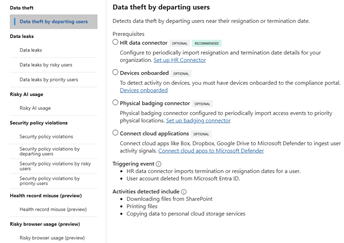
    Insider Risk Management → Policies → Create Policy

    Microsoft provides several built-in templates covering common risk scenarios, including:

    • Data theft by departing employees
    • Data leaks
    • Data leaks by risky users
    • Data leaks by priority users
    • Risky AI usage
    • Security policy violations
    • Industry-specific templates for healthcare (in Preview)
    • Risky browser usage (in Preview)

    These built-in templates provide an excellent starting point. They show the prerequisites for each template, including optional, recommended and required connectors and configurations.


    Be Careful with User Scope

    Determining who should be monitored is one of the most important decisions you’ll make during implementation.

    Although it may be tempting to monitor every user from day one, doing so often creates unnecessary noise and makes it harder to assess how well policies are performing.

    A better approach is to begin with a controlled pilot group, such as:

    • IT administrators
    • Finance personnel
    • Research and development teams
    • Users handling highly sensitive data

    This allows security teams to validate policy effectiveness and establish behavioural baselines before expanding coverage across the wider organisation.


    Focus on High-Value Indicators First

    Insider Risk Management offers a wide range of indicators covering Microsoft 365 activity, endpoint activity, browser usage, and Microsoft Defender signals.

    While flexibility is useful, using every available indicator rarely delivers the best results.

    In most deployments, I recommend initially focusing on high-confidence activities such as:

    • External sharing of sensitive information
    • High-volume file downloads
    • Large-scale file access events
    • USB transfers
    • Activity associated with departing employees

    Starting with a smaller set of meaningful indicators makes it easier to understand alert quality and significantly reduces analyst fatigue during the early stages of deployment.


    Improve Detection Quality with Content-Based Signals

    Not all files carry the same level of risk.

    Monitoring every document equally often creates unnecessary alerts and reduces the effectiveness of investigations. Instead, organisations should focus on content that has already been identified as valuable or sensitive.

    This can include content protected by:

    • Sensitivity labels
    • Sensitive Information Types
    • Trainable classifiers
    • Data Loss Prevention policies

    Examples may include customer records, financial information, source code, intellectual property, healthcare data, or legal documentation.

    By prioritising sensitive content, organisations can dramatically increase the relevance of generated alerts while reducing false positives.


    Departing Employee Policies Often Deliver the Greatest Value

    In many organisations, departing employee policies generate some of the most valuable IRM alerts.

    Employees approaching resignation or termination may begin collecting information they believe could be useful in future roles. While the majority of users act legitimately, this period often represents increased organisational risk.

    When configuring these policies, focus on activities such as:

    • Uploading files to cloud storage providers.
    • External sharing.
    • Downloading large volumes of sensitive content.
    • Accessing repositories that the employee does not normally use.

    At the same time, avoid assigning excessive weight to routine activities that form part of an employee’s normal workload.


    Review and Refine Continually

    IRM should be treated as an ongoing programme rather than a one-time deployment exercise.

    Regular reviews are essential. A monthly review should examine:

    • Alert volumes
    • False positive rates
    • Frequently triggered indicators
    • Repeat offenders
    • Investigation outcomes
    • Case closure reasons

    These metrics provide valuable insight into whether policies are generating genuine security value or simply creating additional workload for analysts.


    Final Thoughts

    Microsoft Purview IRM can be an exceptionally powerful capability when implemented thoughtfully. However, its effectiveness depends far more on tuning and operational maturity than on the initial policy deployment itself.

    Organisations that take the time to pilot policies, focus on high-value indicators, leverage sensitivity labels, and regularly review outcomes typically achieve far better results than those that attempt to monitor everything from the outset.

    When combined with Microsoft Defender and Adaptive Protection, IRM becomes much more than an alerting tool. It becomes a proactive security capability that helps organisations identify emerging insider threats, protect sensitive information, and reduce risk before incidents escalate into major security events.

  • Getting Ready for Microsoft’s Move to Phishing-Resistant MFA by Default

    If you’ve already deployed MFA across your organisation, it’s easy to assume you’re in a good place from a security perspective. A few years ago, that would probably have been true. Today, however, the threat landscape looks very different.

    Microsoft has been steadily raising the security baseline across Microsoft Entra ID and Microsoft 365, and one of the most significant changes is the move towards phishing-resistant authentication becoming the default expectation rather than an advanced security feature.

    Traditional MFA methods such as SMS codes, phone calls, Microsoft Authenticator prompts, and one-time passcodes have undoubtedly improved security. Unfortunately, modern attacks increasingly focus on bypassing these controls through techniques such as adversary-in-the-middle phishing, MFA fatigue, token theft, and session hijacking.

    That’s why organisations are now being encouraged to move beyond simply enabling MFA and towards using authentication methods designed to resist phishing attacks altogether.

    The direction of travel is clear: organisations need authentication methods that are resistant to phishing by design, not just harder for attackers to abuse.

    Why Microsoft is driving this change

    One advantage Microsoft has is visibility. Every day, it processes an enormous volume of authentication requests across Microsoft Entra ID and Microsoft 365, providing valuable insight into how identity-based attacks continue to evolve.

    Despite years of security improvements, password-based attacks are still one of the most common ways attackers gain access to organisations’ environments. What’s more concerning is that modern phishing kits have become sophisticated enough to capture not only usernames and passwords, but also MFA responses in real time.

    This highlights an important reality: while traditional MFA is significantly better than relying on passwords alone, it isn’t immune to attack. Different authentication methods can be targeted in different ways:

    • SMS codes can be intercepted or obtained through social engineering techniques.
    • Voice call verification can be vulnerable to telecom-related attacks and account takeover attempts.
    • Push notifications can be abused through MFA fatigue campaigns, where users are bombarded with prompts until they eventually approve one.
    • One-time passcodes (OTPs) can be captured by phishing proxy services that sit between the user and the legitimate sign-in page.

    Phishing-resistant MFA takes a fundamentally different approach. Rather than relying on a code or approval that a user can be tricked into providing. Authentication is bound to the legitimate service being accessed and the device it is being accessed from.

    In practical terms, this means that even if a user is lured to a convincing fake website, the authentication attempt cannot succeed. The security key, passkey, or authentication method recognises that the request is coming from the wrong domain and simply refuses to authenticate. The result is a much stronger defence against modern phishing attacks and one of the key reasons Microsoft is increasingly positioning phishing-resistant authentication as the future of secure sign-ins.

    The Three Main Options for Phishing-Resistant Authentication

    When organisations start exploring phishing-resistant authentication, they typically encounter three technologies that are now widely recognised as the leading options: passkeys, FIDO2 security keys, and Windows Hello for Business.

    While each works slightly differently, they all share a common goal: replacing credentials that can be stolen, intercepted, or tricked out of users with cryptographic authentication methods that are far more difficult for attackers to compromise.

    PasskeysFIDO2 Security KeysWindows Hello
    PasswordlessHardware-backedDevice-bound
    Easy user experienceHighest assuranceNative Windows
    Growing adoptionGreat for privileged usersIdeal for Windows fleets

    Passkeys

    Passkeys are rapidly becoming one of the most talked-about developments in identity security. Rather than relying on a password that a user must remember and enter, passkeys use cryptographic key pairs to verify identity securely behind the scenes.

    From a user perspective, the experience is simple. Authentication can often be completed using a fingerprint, facial recognition, device PIN, or another trusted sign-in method already available on the device.

    One of the biggest advantages is that there is no password to steal and no code to enter into a fake website. Authentication is linked to the genuine service being accessed, making traditional phishing attacks significantly less effective. As a result, passkeys are increasingly being adopted across consumer and enterprise platforms, including Microsoft Entra ID.

    FIDO2 Security Keys

    For organisations seeking a dedicated hardware-based solution, FIDO2 security keys remain among the strongest authentication options available.

    These small physical devices, such as those produced by YubiKey, Feitian, and Token2, allow users to authenticate by inserting or tapping the security key when signing in. The authentication process is backed by cryptographic protections stored within the device itself, removing the need for passwords and reducing the risk of credential theft.

    The appeal of security keys is their simplicity. Users gain a fast and consistent sign-in experience, while security teams benefit from an authentication method that is highly resistant to phishing, credential harvesting, and account takeover attempts.

    Windows Hello for Business

    Windows Hello for Business takes a similar cryptographic approach but integrates it directly into the Windows sign-in experience.

    Instead of entering a password, users authenticate using a PIN, fingerprint, or facial recognition. Behind the scenes, Windows uses a securely stored credential that is tied to both the user and the device.

    This means the authentication process is not dependent on a reusable password that could be captured and reused by an attacker. Because the credential remains protected on the endpoint and is designed to validate against legitimate services, it provides strong protection against many common identity-based attacks while also improving the everyday user experience.

    Preparing for Phishing-Resistant MFA

    Assess your current MFA estate

    Before moving to phishing-resistant authentication, you need to start by understanding what you already have. This gives you a realistic view of where risk exists and where change will have the biggest impact.

    Useful questions include:

    • Which MFA methods are currently in use?
    • How many users still rely on SMS authentication?
    • Are voice calls still enabled for verification?
    • How many users have Microsoft Authenticator configured?
    • Are privileged accounts already using stronger authentication methods?
    • Are break-glass accounts properly secured?

    Microsoft Entra reporting can help identify the authentication methods users have registered. Pay particular attention to Global Administrators, Privileged Role Administrators, Security Administrators, Helpdesk Administrators, and executive leadership teams. These groups should be prioritised first.

    Review your Conditional Access policies

    Conditional Access will be central to enforcing stronger authentication requirements. The key is to move beyond simply asking whether MFA was used and start asking which type of MFA was used.

    Authentication Strengths in Microsoft Entra ID are especially useful here because they allow organisations to require specific phishing-resistant methods, such as FIDO2 security keys, Windows Hello for Business, or passkey authentication.

    This gives you a practical way to phase in the transition rather than forcing a disruptive, organisation-wide change overnight.

    Start with administrators

    Privileged identities should be the first priority. They are high-value targets, and securing them early delivers immediate risk reduction while giving IT and support teams experience with the new authentication methods.

    A sensible rollout path could look like this:

    • Enable phishing-resistant MFA for Global Administrators.
    • Extend the requirement to all privileged roles.
    • Roll it out to IT staff.
    • Expand to high-risk users.
    • Move gradually to the wider employee population.

    This staged approach keeps the rollout manageable while still making progress.

    Prepare your end users

    The technology is only one part of the change. Users need to understand why authentication is changing, what passkeys are, how Windows Hello for Business works, how security keys are used, and what they should do if a device is lost or replaced.

    Good communication should include awareness messaging, simple user guides, short training videos, self-service registration instructions, and clear support escalation paths.

    A better user experience is possible: once people are familiar with the process, phishing-resistant authentication can often feel easier and smoother than traditional MFA.

    Validate device readiness

    A successful rollout depends on knowing whether your devices are ready. Review Windows versions, Intune management status, TPM availability, biometric hardware support, and mobile device readiness.

    For Windows Hello for Business, confirm endpoints meet Microsoft’s recommended hardware and configuration requirements. For passkeys, check support across the mobile platforms your users rely on.

    Develop a recovery strategy

    Recovery is one of the most important — and most overlooked — parts of a phishing-resistant authentication programme. Strong authentication is only successful if users can recover safely when something goes wrong.

    Plan for common scenarios such as lost security keys, replaced mobile devices, damaged laptops, and emergency access requirements.

    Good practice includes registering multiple authentication methods, issuing backup security keys for privileged users, maintaining monitored break-glass accounts, and documenting recovery procedures. A strong recovery process prevents security improvements from becoming operational blockers.

    Monitor adoption and usage

    Migration should be measured continuously. Track authentication method registrations, passkey adoption, FIDO2 usage, authentication failures, Conditional Access policy impact, and helpdesk ticket volumes.

    Microsoft Entra reporting and log analytics can help highlight adoption trends and identify where users may need extra support.

  • Microsoft Security Basics Every Growing Business Should Get Right

    Why the basics matter

    Cybersecurity headlines often focus on large breaches and advanced attacks, but many real-world incidents still begin with simple gaps in day-to-day protection. For growing organizations using Microsoft 365, a strong security foundation can reduce risk, improve visibility, and make future security investments far more effective.

    At RobsonRitch Cyber Security, the goal is to make Microsoft-focused security guidance practical, clear, and useful. This post introduces the blog and highlights a few core areas every business should review first when building a stronger security posture.

    Start with identity protection

    Identity is at the center of modern cyber defense. If attackers gain access to a user account, they can often move quickly across email, files, collaboration tools, and cloud services. That is why secure sign-in practices should be one of the first priorities for any Microsoft environment.

    • Enable multi-factor authentication for all users, especially administrators
    • Review admin roles and remove unnecessary privileged access
    • Use strong password policies and encourage passwordless options where possible
    • Monitor risky sign-ins and unusual account behavior

    Strengthen email and collaboration security

    Email remains one of the most common entry points for phishing, malware, and business email compromise. In Microsoft 365, security teams and small businesses alike benefit from understanding how protection features work and how user behavior affects risk.

    • Review anti-phishing and anti-malware policies
    • Train users to spot suspicious links, attachments, and impersonation attempts
    • Protect shared files and collaboration spaces with sensible access controls
    • Regularly audit external sharing settings in Teams, SharePoint, and OneDrive

    Use security tools with purpose

    Microsoft offers a broad security ecosystem, but tools only create value when they are configured well and aligned with business needs. Many organizations already have useful capabilities available in their licensing but are not yet using them fully.

    Good security is not just about buying more tools. It is about understanding your risks, using the right controls, and reviewing them consistently.

    Future posts on this blog will explore Microsoft security products, threat trends, configuration tips, and practical best practices in a way that supports both technical readers and business decision-makers.

    What readers can expect

    • Clear breakdowns of Microsoft cybersecurity features and updates
    • Practical guidance for improving security posture
    • Commentary on threats, risks, and defensive strategies
    • Actionable insights for businesses that want to stay informed without the noise

    Stay informed

    Cybersecurity is always changing, but the need for clear and trustworthy guidance stays the same. RobsonRitch Cyber Security is here to help readers better understand Microsoft security topics and make smarter decisions with confidence.